

Every minion must have its public key accepted by the Salt master before it can receive commands. The Keys page surfaces all keys known to the master — grouped by approval state — and lets you accept, reject, or delete them without dropping to the command line. Key actions are executed live against the Salt master via salt-api. Every action is written to the audit log.Documentation Index
Fetch the complete documentation index at: https://www.halite-app.com/llms.txt
Use this file to discover all available pages before exploring further.
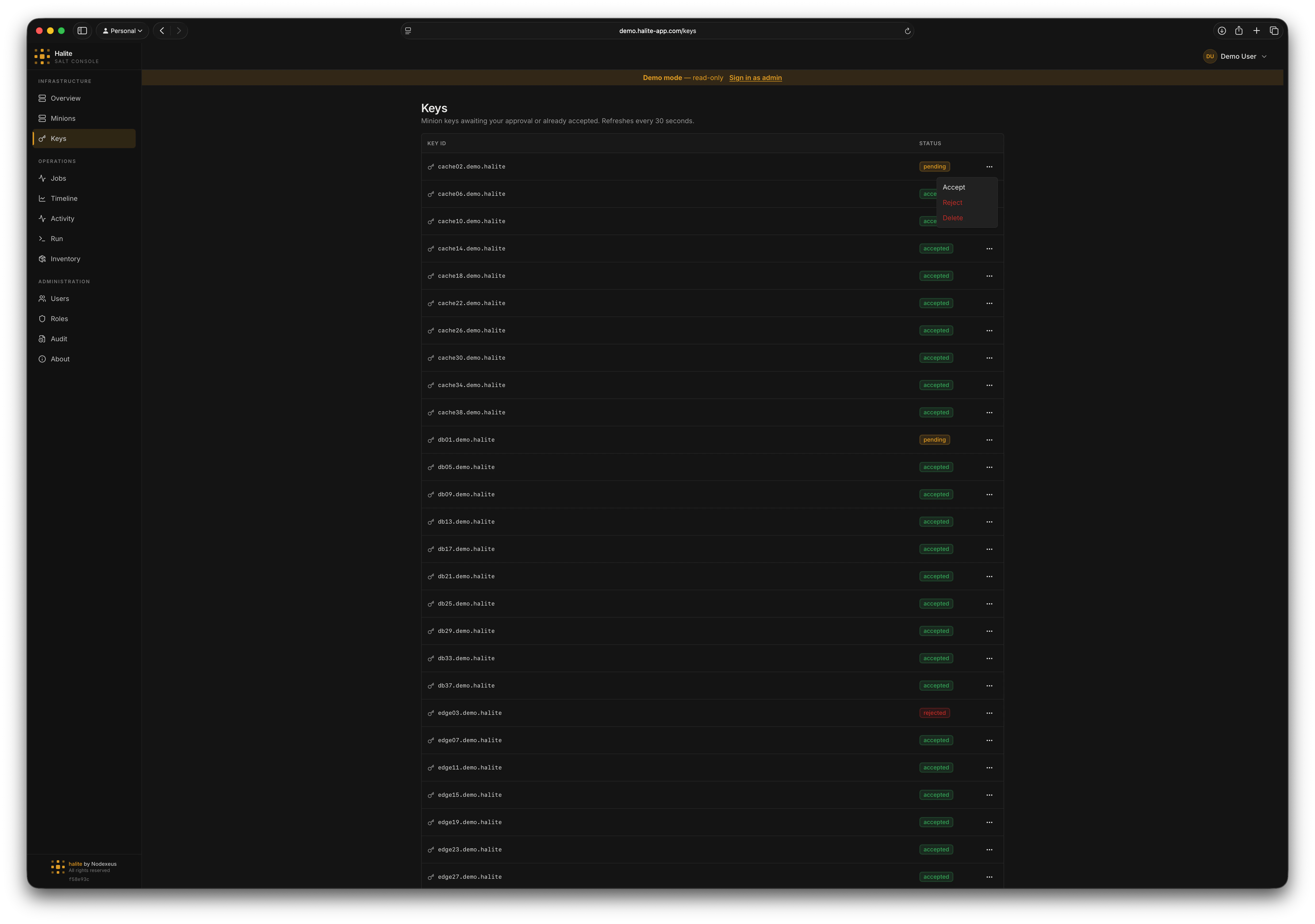
Key states
Halite maps the Salt master’s internal key buckets to four human-readable states:| State | Salt bucket | Meaning |
|---|---|---|
accepted | minions | Key is approved; the minion can receive jobs |
pending | minions_pre | Minion has connected but the key has not been approved yet |
rejected | minions_rejected | Key was explicitly rejected; the minion cannot receive jobs |
denied | minions_denied | Key was auto-denied (e.g. the master is in auto_reject mode) |
Only minions with
accepted keys can receive Salt commands. Pending, rejected, and denied minions show up in the list so you can act on them without leaving the console.Key actions
| Action | HTTP call | Effect on the master |
|---|---|---|
| Accept | POST /api/keys/{key_id}/accept | Moves the key from minions_pre to minions |
| Reject | POST /api/keys/{key_id}/reject | Moves the key to minions_rejected |
| Delete | DELETE /api/keys/{key_id} | Removes the key from the master entirely |
Accepting a pending key
Open the Keys page
Click Keys in the left sidebar. Pending keys appear at the top of the list with a yellow badge.
Identify the key to accept
Verify the minion ID matches a host you expect to onboard. If you are unsure, compare it with entries in your infrastructure inventory before proceeding.
Click Accept
Click the Accept button on the key row. Halite sends a
POST /api/keys/{key_id}/accept request to the Salt master.On success, the key moves from pending to accepted and the minion becomes eligible to receive jobs immediately.Confirm the key is accepted
The list re-fetches automatically. The minion should now appear with an
accepted badge. You can also verify on the Minions page — the minion will show as online once its presence is detected.Rejecting a key
Click Reject on any pending key to explicitly reject it. The key moves torejected state. The minion will see a SaltReqTimeoutError when it tries to publish and will not receive commands until you accept its key.
Permissions
| Action | Permission |
|---|---|
List keys (GET /api/keys) | view:key:* |
Accept a key (POST /api/keys/{key_id}/accept) | accept:key:* |
Reject a key (POST /api/keys/{key_id}/reject) | reject:key:* |
Delete a key (DELETE /api/keys/{key_id}) | delete:key:* |
view:key:* only and cannot perform any mutating actions.
For details on assigning permissions, see RBAC.