

The Settings page is where you connect Halite to your Salt master and tune background poller intervals. All settings are stored in the database (the singletonDocumentation Index
Fetch the complete documentation index at: https://www.halite-app.com/llms.txt
Use this file to discover all available pages before exploring further.
AppSettings row) and take effect immediately without a container restart — saving a change calls runtime.reload(), which tears down the existing Salt client and schedulers and rebuilds them from the new values.
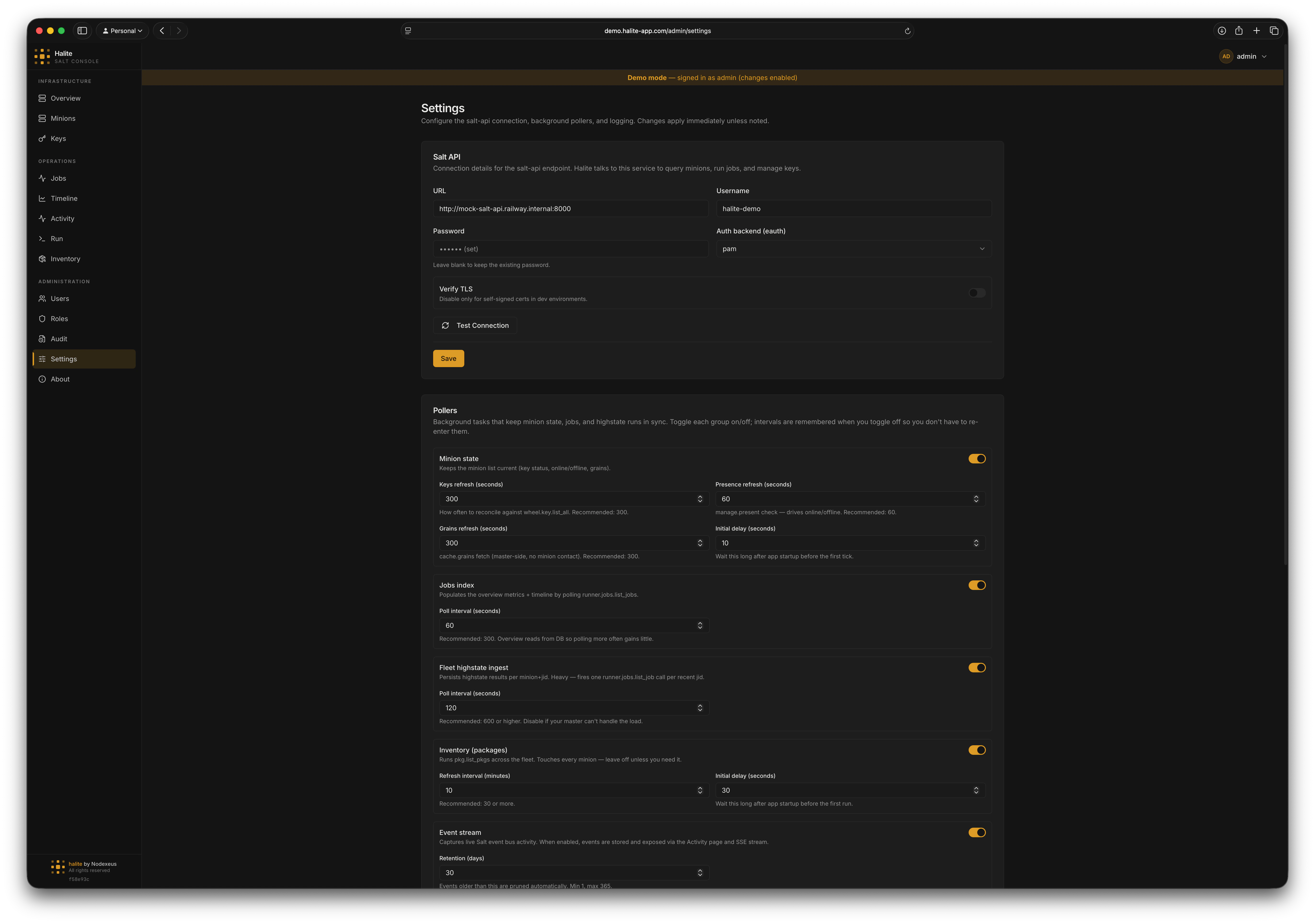
Salt API connection
These fields configure how Halite authenticates tosalt-api.
The full URL of your
salt-api instance, including scheme and port (e.g. https://salt.internal:8000). Clearing this field disables the Salt connection — all background schedulers stop and salt-backed endpoints return empty or degraded responses.The Salt service account username. Maximum 255 characters.
The service account password. The password is encrypted at rest using the server’s
COOKIE_SECRET and is never returned by the API — only a boolean password_set flag is returned so the UI can show (set) without exposing the value.The Salt external auth backend. Accepted values:
pam, sharedsecret, ldap, file, auto.Whether to verify the
salt-api TLS certificate. Set to false only if your salt-api uses a self-signed certificate and you accept the risk.Testing the connection
Before saving, click Test Connection to validate the credentials without persisting them (POST /api/admin/settings/test-salt). The response includes ok, a detail message, and a minion_count when manage.present succeeds. You can also test the currently-saved credentials with POST /api/admin/settings/test-salt-saved (the password is read from the database, not re-entered).
Poller intervals
These fields control how often background tasks run. Set any interval to0 to disable that scheduler.
How often (in minutes) the inventory scheduler collects
pkg.list_pkgs from the entire fleet. 0 disables the scheduler. Range: 0–1440.Seconds to wait after startup before the first inventory collection run. Range: 0–3600.
How often (in seconds) the fleet scheduler looks for new
state.* JIDs and ingests highstate results. 0 disables. Range: 0–86400.How often (in seconds) the jobs scheduler polls for new job index entries.
0 disables. Range: 0–86400.How often (in seconds) the minion scheduler refreshes key state for all minions. Range: 0–86400.
How often (in seconds) the minion scheduler refreshes online/offline presence via
manage.present. Range: 0–86400.How often (in seconds) the minion scheduler refreshes grains for accepted online minions. Range: 0–86400.
Seconds to wait after startup before the minion scheduler’s first tick. Range: 0–3600.
Event stream
The Event stream controls live at the bottom of the Pollers section. They drive the Activity feed, which tails the Salt event bus instead of polling. Saving the Pollers section callsruntime.reload(), so toggling the stream starts or stops the event consumer with no restart.
Master switch for the live event stream. When on, Halite holds a long-lived connection to salt-api’s
/events endpoint, captures job / key / minion events, stores them, and exposes them via the Activity page and SSE stream. When off, no events are captured and the Activity page is empty.How many days of captured events to keep. The event consumer prunes rows older than this. Range: 1–365.
Activity widget
These fields configure the Recent activity widget on the Overview dashboard. They are display-only — saving this section does not trigger aruntime.reload(), and the values are readable by every authenticated user (via GET /api/activity/widget-config) so the widget renders the same way for everyone.
Hide job dispatch (
job.new) events from the widget, leaving only completions and outcomes.Hide routine successes — successful job returns that made no changes.
Include job events in the widget.
Include key events in the widget.
Include minion events in the widget.
How many events to list in the widget. Range: 1–50.
The time window (in minutes) the heartbeat indicator counts events over. Range: 5–1440.
Logging
The backend log format. Accepted values:
json (structured JSON lines, best for log aggregators) or text (human-readable). Note that current builds initialize logging with a hardcoded json format at startup, so this setting is not applied to the running process — a container restart would be required once it is wired up.How live reload works
When you save the Salt or Pollers sections, Halite callsruntime.reload(db) to rewire the live Salt client, schedulers, and event consumer with no restart. Saving the Activity widget or Logging sections does not trigger a reload — those are display-only.
- All running schedulers (minion, fleet, inventory, jobs) and the event consumer are cancelled and awaited.
- The Salt client is closed.
- The
AppSettingsrow is re-read from the database. - If
salt_api_url,salt_api_username, and the decrypted password are all present, a newSaltAPIClientis created and logged in. - Any schedulers whose interval is
> 0are started fresh with the new settings, and — ifevent_stream_enabledis on — the event consumer is started.
None and all schedulers stay stopped. Salt-backed endpoints (minion presence, job dispatch, inventory refresh, etc.) degrade gracefully — they return empty results rather than hard-failing.
Walkthrough: connecting to a Salt master
Enter the Salt API URL
In the Salt API section, enter the full URL of your
salt-api instance, e.g. https://salt.example.com:8000.Enter credentials
Enter the service account
username and password. Set eauth to the backend your Salt master uses (typically pam). If your salt-api uses a self-signed certificate, toggle Verify TLS off.Test the connection
Click Test Connection. If the status shows
ok: true with a minion count, the credentials are valid.Save
Click Save Salt Settings. Halite immediately re-wires the live Salt client — you do not need to restart.
Permissions
| Route | Required permission |
|---|---|
GET /api/admin/settings/status | Authenticated session only |
GET /api/admin/settings | edit:settings:* |
PUT /api/admin/settings/salt | edit:settings:* |
PUT /api/admin/settings/pollers | edit:settings:* |
PUT /api/admin/settings/widget | edit:settings:* |
GET /api/activity/widget-config | Authenticated session only |
PUT /api/admin/settings/logging | edit:settings:* |
POST /api/admin/settings/test-salt | edit:settings:* |
POST /api/admin/settings/test-salt-saved | edit:settings:* |